Building a Budget GPU Rig with Used Hardware for CUDA and AI

A practical guide to buying used GPUs from miners, gamers, and data centers to build a budget GPU server for CUDA development, AI experiments, and scientific computing.
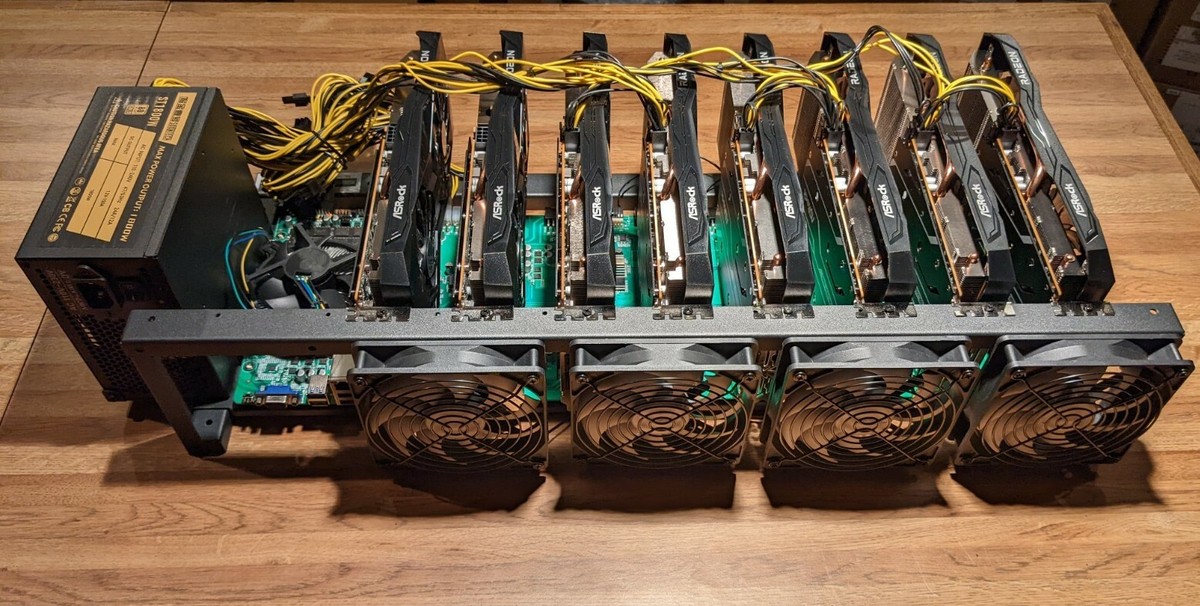
In a previous post, I discussed how to pick a single budget GPU for getting started with CUDA development. But what if you want to go further? What if you want to build an actual multi-GPU rig — a small GPU cluster you can use to experiment with distributed computing, run AI workloads, or tackle scientific simulations?
The good news: the used GPU market is full of interesting options. The bad news: there are quite a few traps for the unwary. In this post, I’ll go through three main sources of used GPUs — mining rigs, gamers, and old data-center hardware — and discuss the trade-offs of each for building a budget GPU server.
The performance vs power consumption trade-off
Before diving into specific options, it’s important to understand a fundamental trade-off that applies to all used GPU purchases: performance vs power consumption.
Older or lower-end GPUs will draw a non-trivial amount of power while delivering a fraction of the compute performance of newer hardware. This isn’t just about your electricity bill — it directly impacts how many GPUs you can fit in a single system, since your power supply and cooling need to handle the total power draw.
As a rule of thumb, if you’re building a multi-GPU rig on a budget, you will inevitably be sacrificing either raw performance, power efficiency, or both. The question is which trade-off makes the most sense for your goals.
Option 1: Mining GPUs — cheap VRAM, but watch the fine print
After the crypto mining boom and subsequent crash, the market was flooded with used GPUs from mining rigs. Many of these cards have 8 GB of VRAM and can be found for **under 1,000. That sounds incredible on paper.
But there’s a catch — actually, several catches.
Low memory bandwidth and inter-GPU communication
Mining cards were selected for hash rates, not for the kind of memory-bound workloads typical of CUDA development or AI training. Many of these cards, especially the lower-end models, have relatively low memory bandwidth. For example, a GTX 1060 6GB has only 192 GB/s of memory bandwidth, which is quite limiting for any serious compute workload.
More importantly, if you’re stacking multiple GPUs, inter-GPU communication becomes critical. Consumer-grade GPUs communicate over the PCIe bus, which even at PCIe 3.0 x16 tops out at about 16 GB/s — a fraction of the GPU’s internal memory bandwidth. Mining cards typically don’t support NVLink, which means that any multi-GPU workload that requires frequent data exchange between cards will be severely bottlenecked.
In practice, this means that while 80 GB of VRAM spread across 10 cheap mining GPUs looks good on paper, you won’t be able to use it as a unified memory pool the way you could with, say, two A100s connected via NVLink. Each GPU is effectively an island, and moving data between them is expensive.
Mining-specific cards: the CMP series
It’s worth calling out a special category here: NVIDIA’s CMP (Crypto Mining Processor) line. These were cards designed specifically for mining, with no video output and firmware-locked to prevent gaming use. The CMP 100-210, for example, has 16 GB of VRAM and can be found for around $120.
On paper, 16 GB of VRAM for $120 sounds like a steal. But the CMP series has a critical limitation: these cards are restricted to PCIe x4 speeds. That’s only a quarter of the bandwidth of a full PCIe 3.0 x16 slot — roughly 4 GB/s instead of 16 GB/s. This means that CPU-GPU data transfers will be painfully slow, and in a multi-GPU setup, any communication between GPUs over PCIe will be even more bottlenecked than it already is with regular consumer cards.
For workloads where the data fits entirely in GPU memory and rarely needs to move back and forth (e.g., running inference on a model that fits in 16 GB), a CMP card could work. But for anything involving frequent host-device transfers, iterative solvers that need CPU coordination, or multi-GPU communication, the PCIe x4 limitation is a dealbreaker. You’d be leaving a lot of performance on the table.
Should you buy from a miner?
Mining GPUs aren’t necessarily damaged goods, though. As I discussed in my buying guide:
- Miners usually care for their cards — it’s their investment after all — and control the temperature closely.
- Miners care about power consumption, so they typically don’t overclock (or even underclock) their cards.
- Running 24/7 at a steady temperature is arguably a better use pattern than a gamer’s periodic temperature spikes.
So the hardware itself might be in decent condition. The problem is more about the specs: mining-grade GPUs are generally older, lower-end models that are not ideal for the kind of compute work we’re interested in.
Bottom line: Mining GPUs — and especially mining-specific cards like the CMP series — can work for very budget-constrained experiments where you want a lot of VRAM for cheap (e.g., running small language models that need to fit in memory but aren’t performance-critical). But don’t expect great throughput or efficient multi-GPU scaling. The PCIe limitations on mining-specific cards make them a particularly poor choice for anything requiring significant data movement.
Option 2: Buying from gamers — the sweet spot for used consumer GPUs
If you’re looking for a single card or maybe two GPUs with genuinely good specs, buying from gamers is often the best option.
Here’s the thing about the gaming community: many enthusiast gamers have very large budgets and upgrade frequently. When the latest generation drops, the previous generation floods the second-hand market at attractive prices. This means you can often find cards like the RTX 3080 or even the RTX 3090 at significant discounts.
Why gaming GPUs are attractive for CUDA development
Gaming GPUs, especially from the RTX 3000 and 4000 series, offer a compelling mix of features:
- High memory bandwidth: An RTX 3090 delivers 936 GB/s, which is excellent for memory-bound CUDA workloads.
- Tensor cores: From the RTX 2000 series onward, you get tensor cores for accelerated matrix operations — essential for AI/ML experimentation.
- Modern architecture: Ampere and Lovelace GPUs support the latest CUDA toolkit versions and features.
- Standard cooling: These cards come with their own fans and are designed for a normal PC case, not a server rack.
- Video output: Unlike data-center GPUs, gaming GPUs have display outputs, so you can use them in your daily-driver PC.
A used RTX 3090 with 24 GB of VRAM can sometimes be found for $600-700 — not pocket change, but a serious card for CUDA development and even local AI inference. Two of them in a single system would give you 48 GB of VRAM, which is enough to run many large language models.
The downsides
The main limitations of consumer-grade GPUs remain:
- Crippled double-precision performance: NVIDIA deliberately limits F64 performance to 1/32 or 1/64 of F32 performance on GeForce cards. If you need double-precision for scientific computing, consumer GPUs will be disappointing.
- No NVLink on most models: Multi-GPU communication is limited to PCIe, except for the RTX 3090 which does support NVLink (making it an unusually attractive option for a two-GPU setup).
- Power draw: High-end gaming GPUs can draw 300-450W each, so a two-GPU setup needs a beefy power supply.
Bottom line: For most people building a budget CUDA development rig, a used gaming GPU — particularly an RTX 3080 or 3090 — offers the best balance of performance, features, and usability.
Option 3: Old server-grade GPUs — the Tesla P100 and friends
Now, here’s where things get really interesting for the budget-minded tinkerer. Older data-center GPUs like the Tesla P100 have dropped dramatically in price. You can find a P100 with 16 GB of HBM2 memory for around $85 on the second-hand market.
At that price point, the specs are frankly impressive:
| Card | Compute Capability | CUDA Cores | Memory | Memory Bandwidth | F64 Performance |
|---|---|---|---|---|---|
| Tesla P100 | 6.0 | 3,584 | 16 GB | 732 GB/s | 5.3 TFLOPS |
Compare the memory bandwidth: 732 GB/s is better than an RTX 3080 (760 GB/s) and dramatically better than any mining-era GTX 1060 (192 GB/s). And at 5.3 TFLOPS of double-precision, the P100 can be up to 10X faster than a similarly-priced CPU for F64 workloads — something no consumer GPU at any price can match in terms of price-to-F64-performance.
The challenges of running server GPUs at home
Of course, there are significant practical challenges:
Cooling and noise
This is the big one. The Tesla P100 is a passive-cooled card designed to sit in a server chassis with high-velocity fans blowing air across it. It does not have its own fans. If you put it in a regular PC case, it will overheat and shut down.
There are two approaches:
- Install it in an actual server chassis with proper airflow. This works, but server fans are extremely loud — we’re talking jet-engine-in-your-office loud. This is a non-starter if the machine will be anywhere near where you live or work.
- Use aftermarket cooling solutions. Some people 3D-print fan shrouds or zip-tie case fans to the heatsink. This can work, but requires some DIY spirit and testing to make sure temperatures stay within safe limits.
No display output
Data-center GPUs don’t have video outputs. You’ll either need a cheap secondary GPU for display, or (more practically) set this up as a headless server and SSH into it.
Motherboard compatibility
The Tesla P100 uses a PCIe 3.0 x16 interface (the SXM2 variant uses a different connector and needs a specific baseboard, so make sure you’re buying the PCIe version). While any modern motherboard with a PCIe x16 slot should work, if you want to run multiple P100s, you need enough PCIe lanes and physical slots — which brings us to the server motherboard question.
Building a budget server with X99
Here’s where things get creative. If you want to build a dedicated GPU server around one or several P100 cards, you don’t necessarily need an expensive modern platform. The Intel X99 chipset, paired with old Xeon E5 v3/v4 CPUs, has become a favorite among budget server builders and home-lab enthusiasts.
Why X99?
- X99 motherboards can be found for $50-100 on the used market.
- Xeon E5-2670 v3 (12 cores, 24 threads) CPUs go for about $20-30.
- DDR4 ECC RAM in 16 or 32 GB sticks is very affordable on the used market.
- Most X99 boards have multiple PCIe x16 slots, some with full electrical x16 lanes, making them suitable for multi-GPU setups.
- The platform supports 40 PCIe lanes from the CPU, which is sufficient for two or even three GPUs without resorting to a PLX chip.
A complete X99-based system with a Xeon CPU, 32-64 GB of RAM, and a case with decent airflow can be put together for 300-350 total for a headless GPU server with 16 GB of HBM2 VRAM and proper double-precision performance.
Add two P100s and you’re looking at a system with 32 GB of VRAM for around $450. That’s a remarkable amount of compute for the price.
A sample budget build
Here’s a rough bill of materials for a budget two-GPU server:
| Component | Approximate Price |
|---|---|
| X99 motherboard | $70 |
| Xeon E5-2670 v3 | $25 |
| 32 GB DDR4 ECC RAM | $30 |
| 2x Tesla P100 (PCIe) | $170 |
| 750W PSU | $60 |
| Case with good airflow | $50 |
| Storage (256 GB SSD) | $20 |
| Total | ~$425 |
Of course, this is a rough estimate and prices fluctuate. The point is that a functional GPU server with 32 GB of VRAM and over 10 TFLOPS of F64 compute can be built for under $500. You won’t get NVLink between the P100s (that requires the SXM2 variant and expensive baseboards), but for independent workloads or data-parallel training with gradient synchronization over PCIe, it can work.
What is this kind of rig good for?
Let’s be realistic about what a budget GPU server built from used parts can and cannot do.
Great for:
- Learning GPU server administration: Setting up CUDA drivers, configuring multi-GPU environments, managing GPU resources, monitoring temperatures — all of this is best learned hands-on, and a cheap rig is the perfect sandbox.
- AI experimentation: Fine-tuning smaller models, running inference on medium-sized language models, experimenting with frameworks like PyTorch and TensorFlow on real GPU hardware.
- Scientific simulations: If you’re working on CFD, molecular dynamics, or other scientific computing that benefits from GPU acceleration, a P100 with proper F64 support is a genuine workhorse.
- CUDA development and benchmarking: Writing and profiling CUDA kernels, understanding memory access patterns, experimenting with streams and concurrency.
Not ideal for:
- Training large language models: You simply don’t have enough VRAM or inter-GPU bandwidth. Even 32 GB across two cards is modest by modern LLM training standards.
- Production inference at scale: Latency and throughput won’t compete with modern hardware.
- Anything requiring tensor cores: The P100 predates tensor cores (it’s Pascal architecture, compute capability 6.0). If mixed-precision training is your thing, you’ll need at least Volta-era hardware.
Final thoughts
The used GPU market offers a surprisingly rich set of options for building a budget CUDA development rig or a small GPU server. Here’s a quick summary of the trade-offs:
| Source | Pros | Cons |
|---|---|---|
| Mining GPUs | Cheap VRAM, many cards available | Low bandwidth, old architectures, poor multi-GPU scaling |
| Mining-specific (CMP) | 16 GB VRAM for ~$120, no video output waste | PCIe x4 bottleneck, no display, limited resale value |
| Gaming GPUs | Great performance, modern features, easy to install | No F64 performance, can be pricey for high-end models |
| Server GPUs | F64 performance, high bandwidth, very cheap | No display output, noisy cooling, needs server platform |
My recommendation? If you’re building your first budget GPU rig and want something that just works in a normal PC, go for a used RTX 3080 or 3090 from a gamer. If you’re more adventurous and want to build a proper headless GPU server — especially if double-precision performance matters to you — a P100 on an X99 platform is hard to beat at the price point.
Either way, you’ll learn a ton. And in the world of GPU computing, hands-on experience with real hardware is worth more than any amount of reading specs online.